OBIEE: Create Repository Init Block
Here's what I'm trying to do. Due to certain restrictions in our environment, the tnsnames entries in our separate environments (Dev/QA/Stage/Prod) are exactly the same. I would prefer to have one entry in each environment that points to that environments database, but alas, I cannot. What this does is forces us to change the password in the connection pools when migrating. I know it's not ideal, but it is what it is.
The proof of concept I am embarking on will allow us to lookup the tnsname entry and the associated password for that environment, theoretically, requiring nochanges between environments.
In that respect, it was decided that we would have a single service account. From that service account, we could look up the values we need for each environment. Here's the other fun problem...what comes first? The chicken or the egg? This service account password will be stored in a simple text file that will be locked down by the system administrators. Don't ask what happens when the password changes either. At this point, it's just a proof of concept. So be gentle. If you have an established way to manage passwords...please share.
We've pulled the text file into the RPD already. Now, I need to create 2 repository variables to hold these values. I open up the Administration tool, go to Manage then variables. You should see this:

Then follow this picture to create a new Initialization Block

Name your Initialization block init_block_test

Leave the scheduler stuff alone for now, click on Edit Data Source

First, browse for the connection pool

Select the get_local_password (yes, the name mysteriously changed from the default Connection Pool to "get_local_password," it makes sense doesn't it?).

In the Default Initialization String text box, enter:
SELECT username, password
FROM test.txt
You can test it if you want, but I'm saving it for the final step.
Your Initialization Block Data Source should look like this

Now select Edit Data Target

Which looks like this

Select New and enter INIT_USERNAME in the Name text box and make the Default Initializer 'USERNAME' (in single quotes).

Do the same thing for the password column, INIT_PASSWORD and 'PASSWORD'
Now you are back at the main screen and the Test button (lower left hand corner) should be enabled. Select it.

One final test...let's see if we can access these in the presentation layer.

So it's a success right?
After I was done, I began to think..."You can access the repository variable from the presentation server"
Ummm...that's not good. Double checked the properties of both the Initialization Block and the Variables to see if there's a way to lock it down...and there's not. Because of this "small" little security issue, I'm not completely sold. It is a proof of concept, perhaps it should stay there.
Creating an OBIEE Repository for Relational Data Source
17/12/2010
OBIEE (Oracle Business Intelligence Enterprise Edition)
In this part of my OBIEE blog, I’ll guide you through basic steps to create an Oracle server repository and use it to bring over a relational data source for use in OBI Answers. As of OBIEE version 10.1.3.3.2, Essbase is supported as an OBI data source allowing the user to integrate Essbase data with OBI Answers, OBI Interactive Dashboards, and OBI Publisher. The latest version of OBIEE is 10.1.3.4x. Refer to my part 2 blog (OBIEE and Essbase – Defining OLAP Integration) for importing Essbase content into OBIEE.
For the below steps, I will be using SQL Server 2005 relational database as my source but you can use Oracle 10g or older versions of either tool.
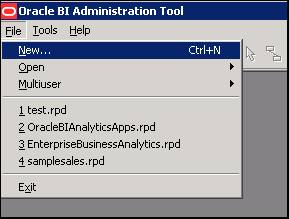
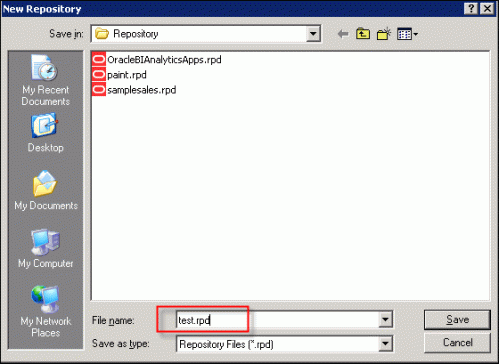
To create an Oracle repository, open the Oracle BI Administration Tool and select File | New and name your new repository.
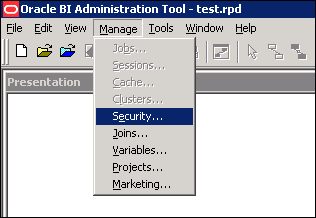
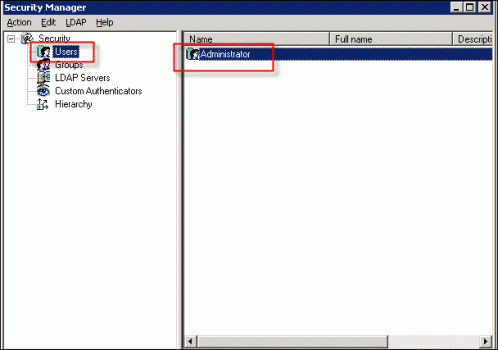
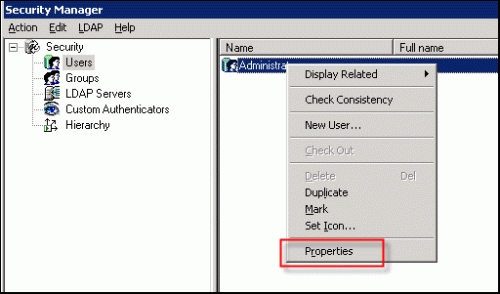
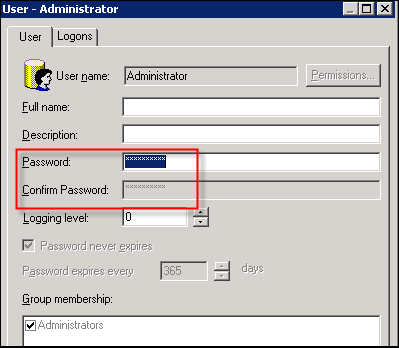
Set security by selecting Manage | Security. Assuming you are the admin, select Users | Administrator. Right click Administrator, select Properties to enter an admin password and confirm the password. Close out Security Manager.
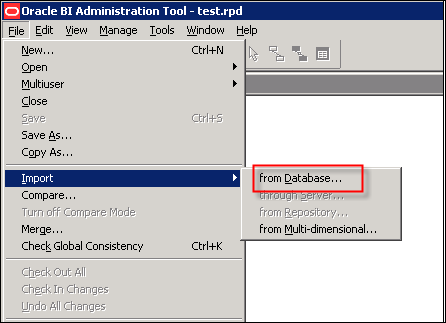
To import a relational data source, select File | Import | from Database.
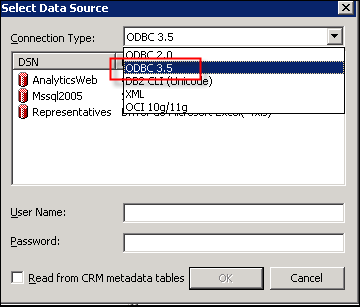
Select a connection type.
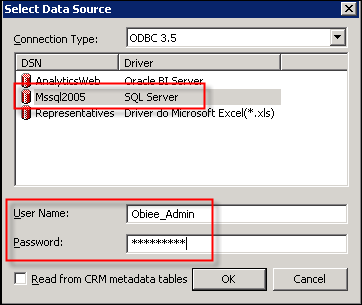
Select the relational data source, enter login credentials and click OK.
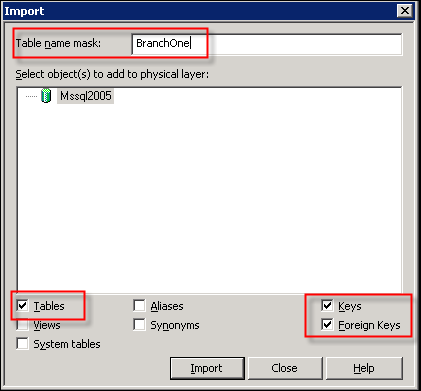
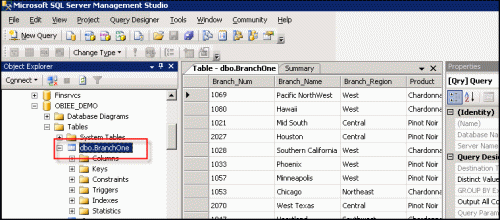
Enter the relational table to import. Deselect all but Tables, Keys, and Foreign Keys and click Import. If you are using Views instead of Tables, change accordingly.
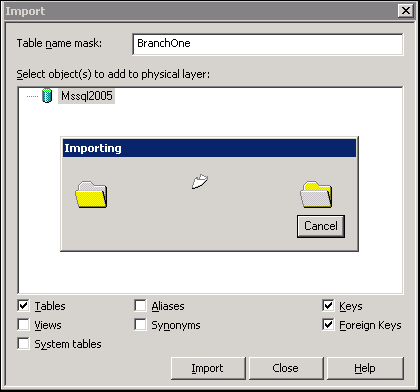
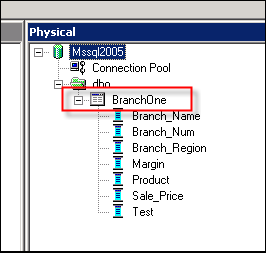
The relational table will import into the Physical layer of the Administration Tool.
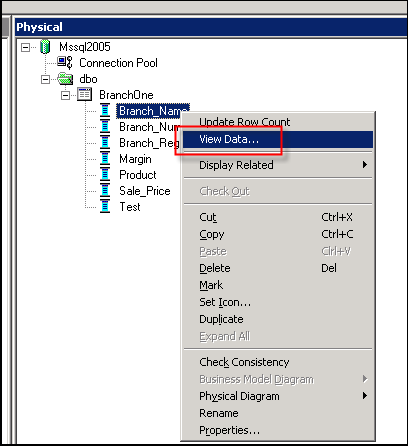
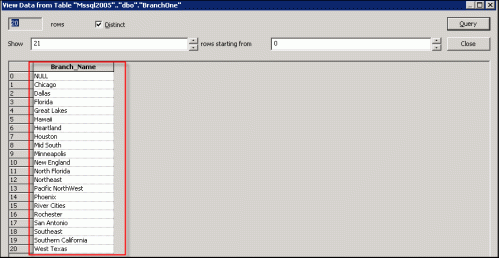
Test the import by right clicking a column (Branch_Name is selected in this example) and select View Data. Values for the selected column should populate in a view data table.
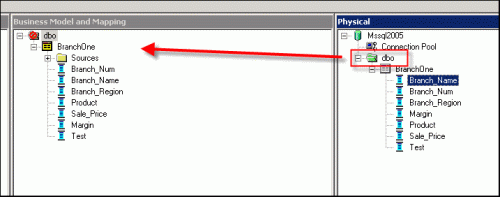
Drag the imported relational table folder from the Physical layer to the Business Model and Mapping (BMM) layer. In the BMM layer, here you can create logical tables and joins to develop the type of model needed for presentation.
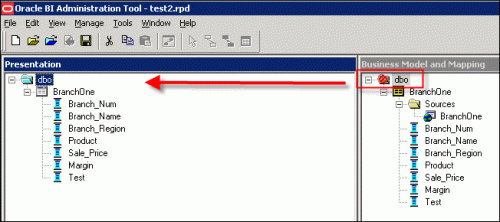
Next, drag the relational table from the BMM layer to the Presentation layer to finalize its presentation for the user. Manipulation by presentation can be performed in this layer for Subject Area use in OBI Answers.
For your reference and as a recap from my part 2, here is the significance of each layer:
| 1. Physical layer – imported tables and views come from the relational data source; physical joins can be performed here |
| 2. BMM layer – this layer organizes imports from the physical layer into logical categories |
| 3. Presentation layer – BMM entities are organized for user presentation |
|
|
|
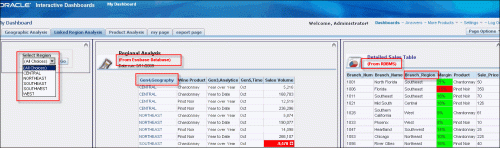
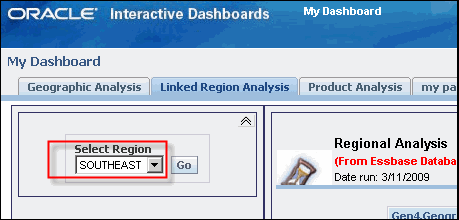
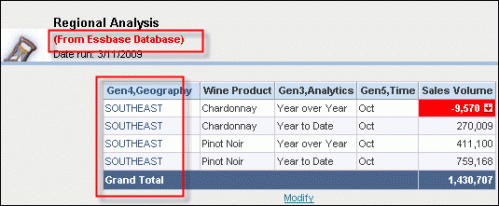
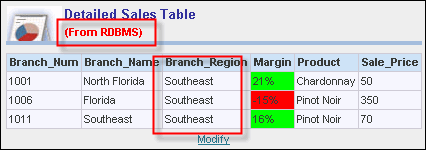
Once your Presentation layer is complete, it can be made available for OBI Answers to create dashboard content bringing both relational and multidimensional data sources into one view. A sample of an Answers view is displayed below combining both relational and multidimensional data sources into a combo box allowing for choice among regions. Any selection of region updates both relational and multidimensional tables for view.
This is just one simple example of the product’s capabilities. OBIEE is redefining how we approach BI with the evolution of this product improving on how we develop it. There is a great deal of flexibility within OBIEE for relational and multidimensional reporting and those who understand how to leverage this tool will see its impact upon their organization for the better.